
Autopilot
Turn on Autopilot in Opportunities, process your selected queue without downloading a CV, answer questions, and follow completed applications in Tracker.
Autopilot completes supported employer application forms for jobs you selected. Manage it inside Opportunities, beside Daily momentum. It uses your confirmed profile, saved answers, chosen documents, and the job post. When it cannot establish a required fact, it pauses that application and asks you.
Autopilot is currently a pilot for enabled accounts. If the switch is not available, contact the MYO team with the email address you use to sign in.
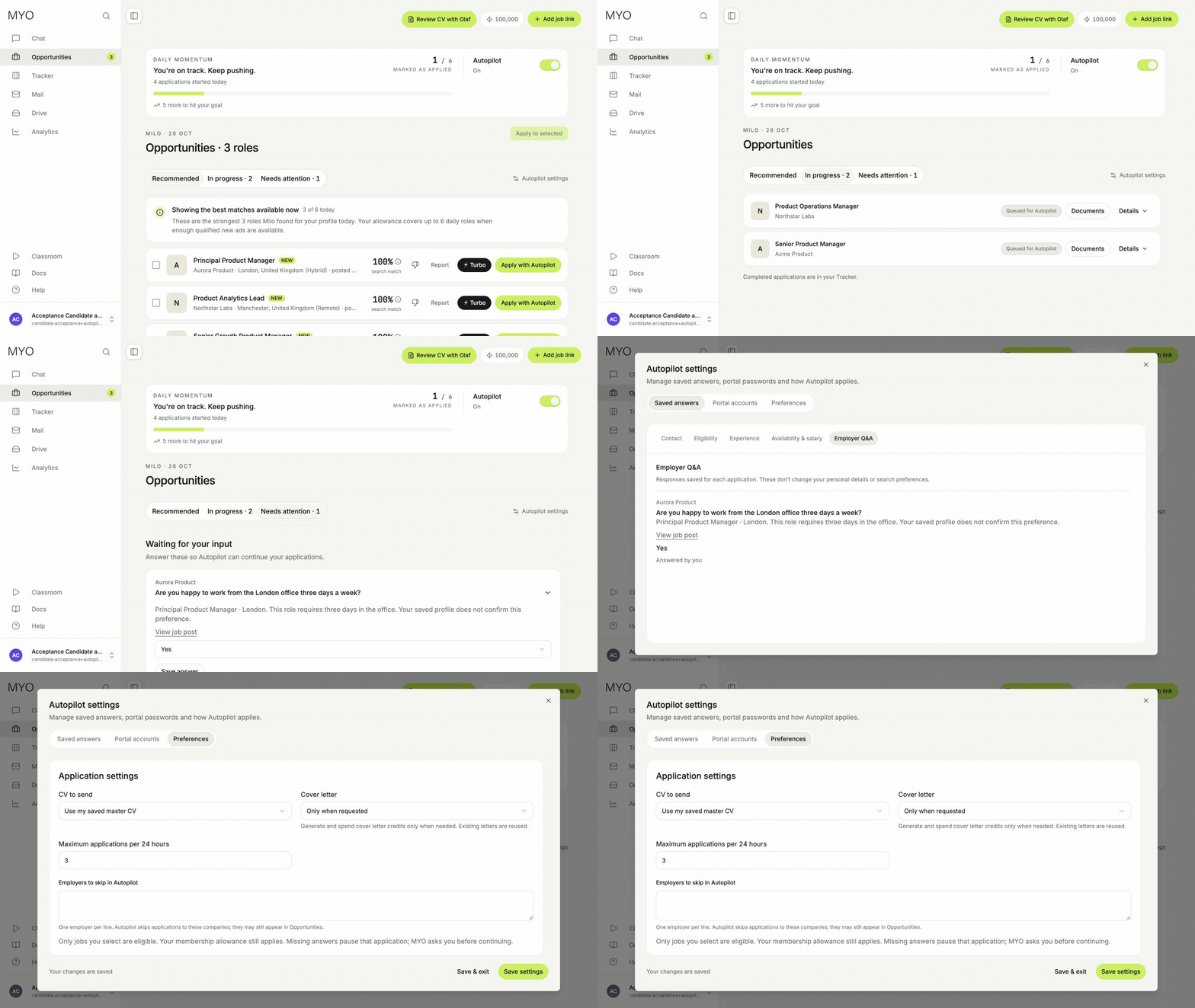
The walkthrough uses example data. You do not need to generate a CV manually, export it, or download it to start Autopilot. Enabling Autopilot starts preparation of eligible applications already selected in your queue. Downloading a document saves a copy for you; it does not submit an application or mark it Applied.
Before you turn it on
Check these items once:
- Finish your profile and review your Base CV.
- Open Opportunities and keep only roles you genuinely want.
- Connect the Gmail address used for applications in Mail. This lets MYO use verification messages and link employer updates.
- Add your WhatsApp number in Settings → Profile, then enable Milo on WhatsApp and Application updates in Settings → Notifications. WhatsApp is optional, but it is the fastest way to handle a question that blocks an application.
- Open Opportunities → Autopilot settings → Saved answers to review contact information, work eligibility, experience, availability, salary, and reusable answers. First-time setup opens this review for you.
MYO should reuse an answer only when it has confirmed evidence. It must not infer a protected fact, a personal declaration, or an employer-specific answer that is not supported by your saved information.
Turn on Autopilot
- Open Opportunities.
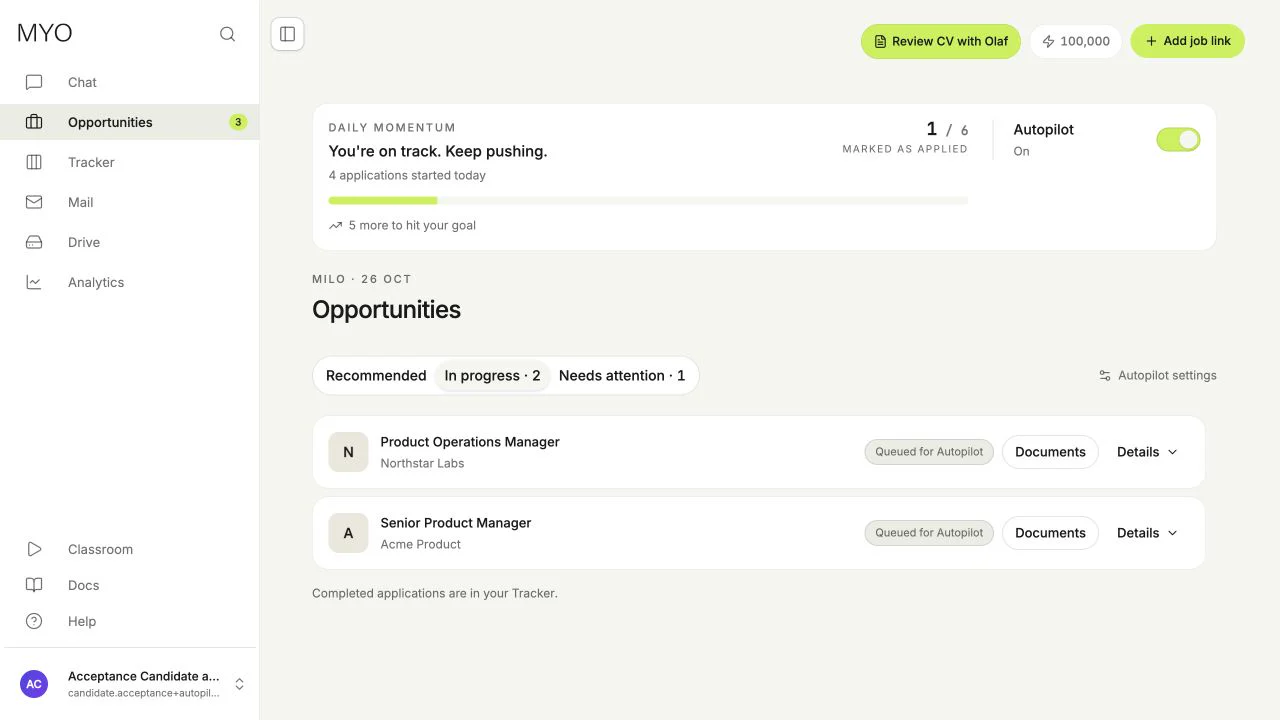
- Find the Autopilot switch beside Daily momentum.
- Turn it on. The first activation opens setup.
- Review Saved answers. Check your current residential address; postal labels follow your country of residence, not the country where you are applying. Confirm whether your Master CV includes all employment and contracting history. Choose how to handle optional demographic questions, then save your answers. Olaf is available during this initial setup.
- Open Preferences. Choose your daily maximum, document policy, and cover-letter policy. Read and confirm the application authorisation.
- Select Enable Autopilot, or Enable & start … applications when you already have eligible selected applications.
- Open In progress to follow preparation and execution. Existing selected, unsent applications are checked automatically. Missing sources or required answers appear in Needs attention.
- To add more work, use Recommended, select the roles you want, then choose Apply to selected. You can also use Apply with Autopilot on one role.
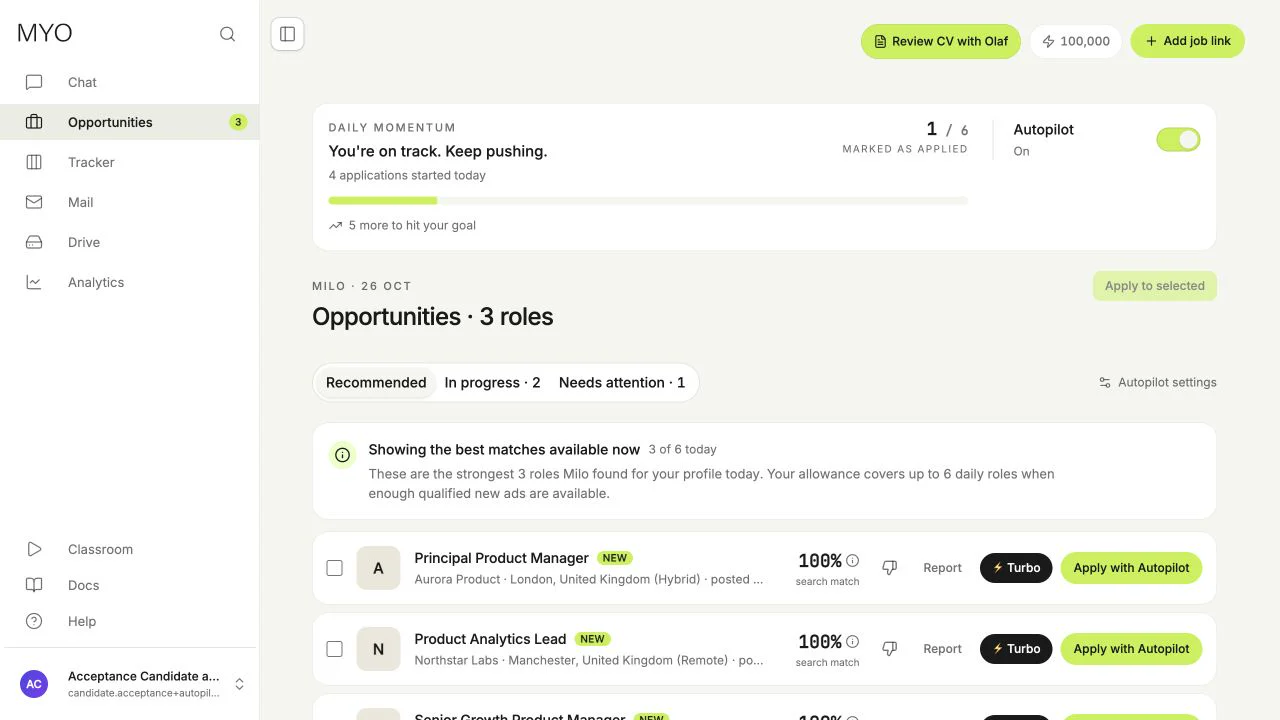
Turning on Autopilot does not apply to every recommendation. It works on the applications you select, within your application allowance, daily maximum, saved exclusions, and the currently supported employer forms. You can pause it at any time.
Your first setup review
The short review links directly to your address, work history, and optional demographic preference. Saved information remains filled in for you to check. If your work history is incomplete, follow the Master CV link and add the missing facts.
For optional demographic questions, choose Prefer not to disclose or Ask me each time. With non-disclosure selected, MYO uses the employer's available non-disclosure option. If that option is unavailable, MYO asks you. With Ask me each time, demographic questions stay for your answer, including when an earlier application used an automatic non-disclosure answer. MYO does not infer sensitive personal details from your CV.
The work-history confirmation and demographic choice are required for first activation. Existing authorised queues continue without being stopped by this new review. You can change saved answers later in Autopilot settings.
Employer-specific questions can still appear in Needs attention when the required information is missing or unclear. Completing setup does not mean every employer asks the same questions.
Approve new recommendations away from the app
When Autopilot is on, Milo's new-job message asks which roles you want to apply to. Check the company, title, and job link before choosing. You can reply on WhatsApp or directly to the recommendation email: for example, Please apply to J1 and J2. You can also name a company or role when it identifies exactly one job in that message.
An unanswered recommendation is not an approved application. Selecting a role starts its normal preparation and application checks; it does not mean the employer has received it. If more than one role matches your reply, Milo asks which one you meant. A newer WhatsApp job list replaces the previous list for selection; reply to the email containing the jobs you mean when using email.
Choose your documents
- Tailored CV: MYO prepares the job-specific package from your approved sources and checks it before the employer form can continue. You do not have to open the editor or download the result to trigger this.
- Master CV: MYO uses your saved, ready Base CV directly. A separate tailored CV is not required.
- Cover letter: follow the policy shown in Preferences. With letters generated when requested, a missing letter does not block a form that does not ask for one. A required letter still has to be prepared.
If your CV or another required source is missing or needs review, use the action shown in Needs attention. Fixing the source allows MYO to check selected applications again. Downloads do not bypass a source or quality check.
Find the next action
| Place | What belongs there |
|---|---|
| Recommended | Roles you can review and select. |
| In progress | Applications being prepared, queued, or currently processed. |
| Needs attention | Missing answers or sources, unsuccessful attempts, manual handovers, and submissions awaiting confirmation. |
| Tracker | Application history, including completed automatic and manual submissions and employer decisions. |
| Autopilot settings | Saved answers, employer portal accounts, and preferences. |
Completed applications leave the ongoing Opportunities views. Open Tracker to find them again. Counts in the work views refer to applications; one application can have more than one question.
When MYO needs your answer
Home shows one current Autopilot question so you can answer it quickly. The full queue is in Opportunities → Needs attention.
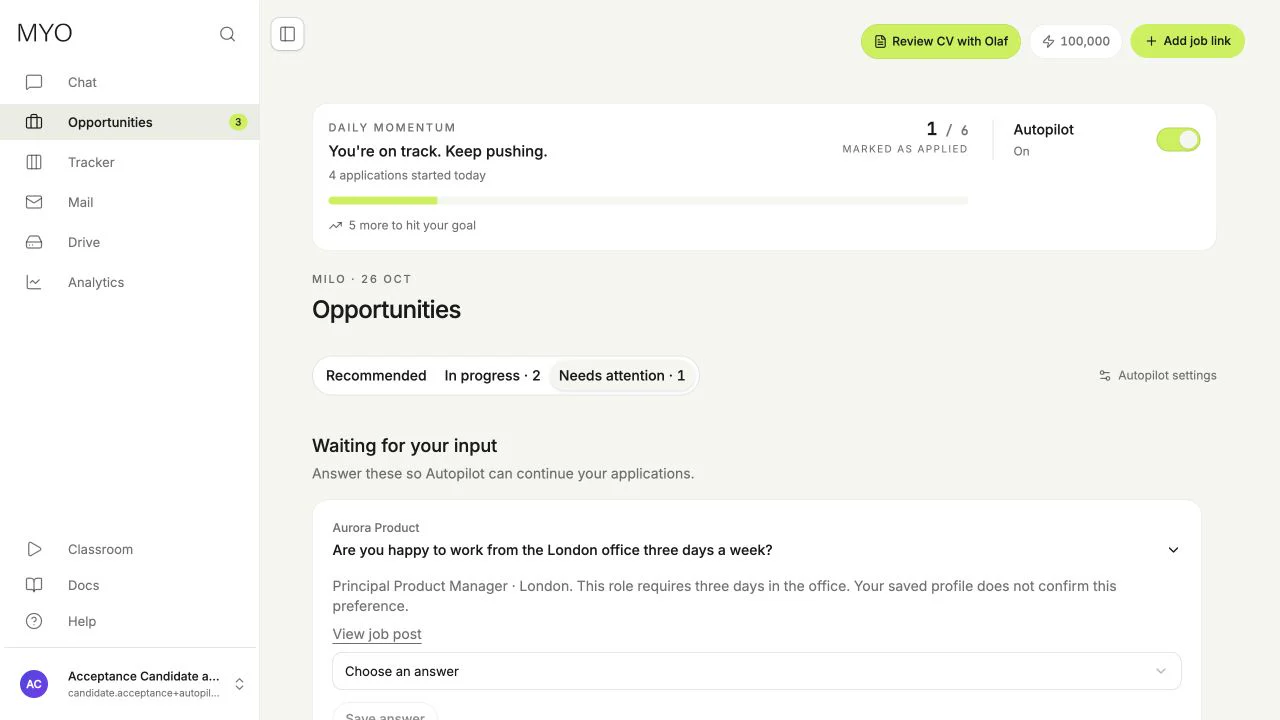
For each question:
- Check the company, role, and exact question.
- Select View job post when the answer depends on the advert. The card also shows a short source summary when MYO has one.
- Review any suggested answer. A suggestion is not saved until you approve it.
- Choose or enter the answer.
- Select Save answer in Opportunities, or Save & next on Home.
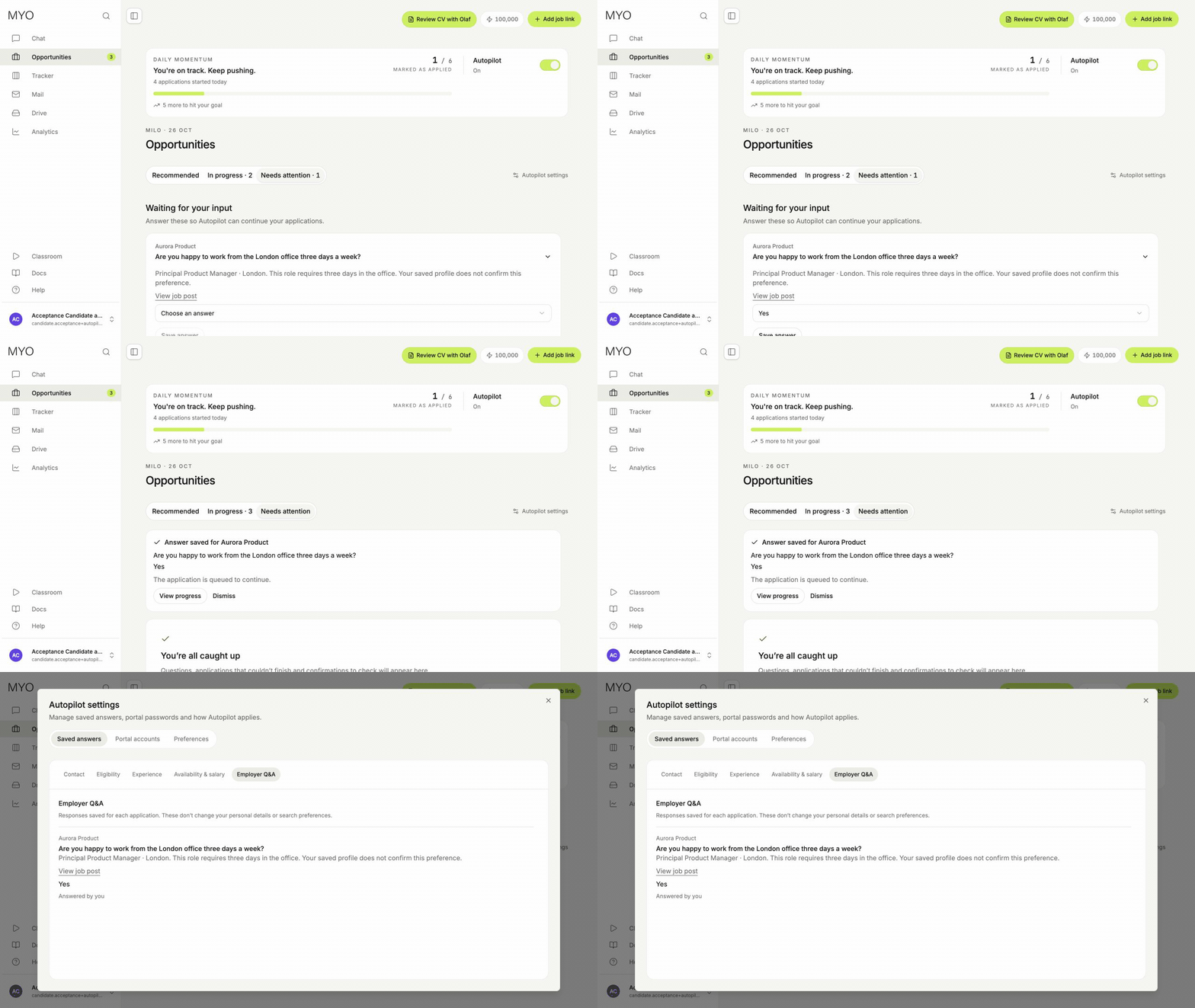
- Check the saved confirmation. The question is removed from the pending list. If there are no other blockers, the application moves back to the queue; otherwise it shows the next required action. A saved answer does not itself mean the application was submitted.
Use Answer later when you need to verify something. MYO keeps that application waiting and does not guess.
Answers MYO should usually reuse
MYO can normally reuse confirmed contact details, work eligibility, notice period, phone type, location preferences, and factual career history already supported by your profile or documents. It may still ask if an employer phrases the question differently or requests a new declaration.
Answers that may still require you
- demographic questions, depending on your saved preference and the employer's options; conflict-of-interest or legal declarations requiring a personal fact;
- employer-specific relationships or previous employment;
- salary acceptance when the advertised range or currency is unclear;
- a personal statement or writing sample that requires your review;
- protected information that must be entered in the secure form;
- any fact for which the saved sources conflict or provide no evidence.
Keep applications moving with Milo on WhatsApp or email
Milo groups updates from your selected applications into a summary: what was submitted, what is still running, which questions need you, and what could not finish. It includes the company, role, job link, and next step. Updates are grouped briefly while work changes, so every background step does not create a new message. A waiting question holds that application; other eligible selected roles can continue.
Milo keeps application follow-ups in the channel where you are replying. Otherwise, with WhatsApp and Application updates enabled, the summary goes to the number saved on that MYO account. Email is used when WhatsApp is disabled or delivery fails, and when you are conversing with Milo by email. Enabling both preferences does not send the same update through both channels. A WhatsApp message that is still queued, sent, or unread does not by itself trigger email.
Email updates use your connected application mailbox, or your sign-in email when no application mailbox is connected. Reply from the address that received the message. You do not need to connect Gmail just to reply to a Milo email; employer login codes and mailbox tracking still require the relevant mailbox connection.
Answer several questions in one reply
Every question has a reference in the summary. For example:
A1-Q1: Yes
A2-Q1: No
You can also write For Acme: Yes when Acme identifies one application with one waiting question. A plain Yes or No works only when the message contains exactly one question. For written answers, include the question reference and your exact answer. Milo should confirm what was saved and which application can continue; saving an answer is not proof of submission.
If a message is ambiguous, Milo asks for clarification. Protected details still belong in the secure app form. Messages expire after seven days; use a current update or Opportunities if an old reply is no longer accepted.
Get help when a form cannot finish
Milo includes changed applications in the summary, with the job link and a link to the prepared documents where available. Email summaries do not automatically send a separate package for each application. Ask Milo for the files when you need email attachments. On WhatsApp, an unsuccessful application can include its prepared CV for a manual handoff. A cover letter is also included when your preference is to always prepare one; a letter stored from an earlier attempt is not automatically included under the other preference.
To stop automatic work and finish a named application yourself, reply MANUAL A1 or I will apply to Acme manually. To request the available files, reply Send me the CV for A1. Requested email attachments and WhatsApp files may arrive separately from the summary. Check the job link and submit on the employer's website.
After you finish, tell Milo I applied to Acme or SUBMITTED A1. Milo then asks you to confirm the exact role. Reply CONFIRM A1 only after the employer accepted your submission. Tracker records it as manually applied; it is not counted or charged as an Autopilot submission. Opening the link or downloading the CV never marks it applied.
For Awaiting confirmation, first check whether the employer already received the automatic attempt. If you have its confirmation, tell Milo I received the confirmation for Acme or RECEIPT A1. Do not submit again merely because a receipt is delayed.
If a WhatsApp reply does not appear:
- Check that the message came from the number saved on the same MYO account as the applications. A number saved under a second login does not connect the first account.
- Open Settings → Notifications and confirm both WhatsApp and application updates are enabled.
- Open Opportunities → Needs attention. Answer there if the item is still waiting.
- Use Help and include the company, role, question, and approximate time. Do not include passwords or protected values.
If WhatsApp cannot deliver an application update, MYO can send it by email while Application updates are enabled, including when routine email summaries are off. Check the app if neither channel reaches you. Receiving an email from Milo does not authorize any new application until you select the role.
Follow every application
Use Opportunities → In progress for active work and Needs attention for work that requires a decision. Expand Details on an application for its explanation, documents, job context, and available actions. Use Tracker for completed submissions.
| Status | What it means | What to do |
|---|---|---|
| Preparing | MYO is getting the selected documents ready. | Wait, or use the specific source/review action if it moves to Needs attention. |
| Queued | Selected and waiting to start. | Leave it queued or pause Autopilot. |
| Applying | The supported form is in progress. | Wait; MYO will stop if it needs you. |
| Answer needed | A required question cannot be answered from confirmed evidence. | Open the question and answer or defer it. |
| Awaiting confirmation | The final submission may have reached the employer, but MYO has no reliable receipt yet. | Check the employer portal or connected Mail. Do not submit again without checking. |
| Application confirmed | MYO found reliable submission evidence. | Follow the application in Tracker and Mail. |
| Couldn't finish | The employer form failed or needs a person. | Read Details. Use Try again only when offered, or follow the manual flow. |
| Finish manually | The site or question requires direct action. | Download the package, open the job, submit, then mark it manually applied. |
| Applied manually | You confirmed that you completed it yourself. | Follow it in Tracker. It is excluded from the Autopilot applied count. |
Application rows show the company, role, current status, explanation, relevant question, and available actions. Answer question opens the exact pending item. View job post opens the original advert when a link is available.
Take over an application safely
Use the manual flow when the employer blocks automation, the listing requires an unsupported step, or MYO cannot finish after a retry.
- Open the application in Opportunities → Needs attention and expand Details.
- Select Apply manually. MYO prepares the available application documents and opens the employer page. Allow the browser's download or new-tab prompt if it appears.
- Use Documents to inspect or download the available CV and any prepared cover letter separately. Check that you have the right documents before submitting.
- Complete and submit the employer form yourself.
- Return to MYO and select Mark as manually applied only after the employer accepted the submission.
The application moves to Tracker as a manual submission and is not counted as an Autopilot completion. Marking it manually applied without submitting it creates an incorrect record.
Confirmation, Mail, Tracker, and Analytics
Autopilot does not treat a click on the employer's final button as proof by itself. It looks for reliable evidence such as an employer confirmation page, provider state, or a linked confirmation email. An uncertain final state is shown as Awaiting confirmation so MYO does not send a duplicate.
Connect Gmail in Mail to improve this loop:
- submission receipts can confirm the matching application;
- assessments, interviews, offers, and rejections can update Tracker;
- uncertain messages stay in Needs linking for your review;
- Yenny uses linked application history in reports and analytics;
- manually link a message when company or role details are ambiguous.
The default historical Gmail import is the last three calendar months. It searches recruitment messages in your connected mailbox, not other candidates' mail.
Accounts, privacy, and protected details
Open Opportunities → Autopilot settings → Portal accounts for employer accounts, connected Gmail, and protected details. Expand the employer's Manage control to see its available account actions. Removing MYO access does not delete the employer's account.
Passwords are stored encrypted. Reveal actions require a recent sign-in. Do not send passwords, government identifiers, payment information, or other protected values through Chat, Help, or WhatsApp.
Saved answers and preferences
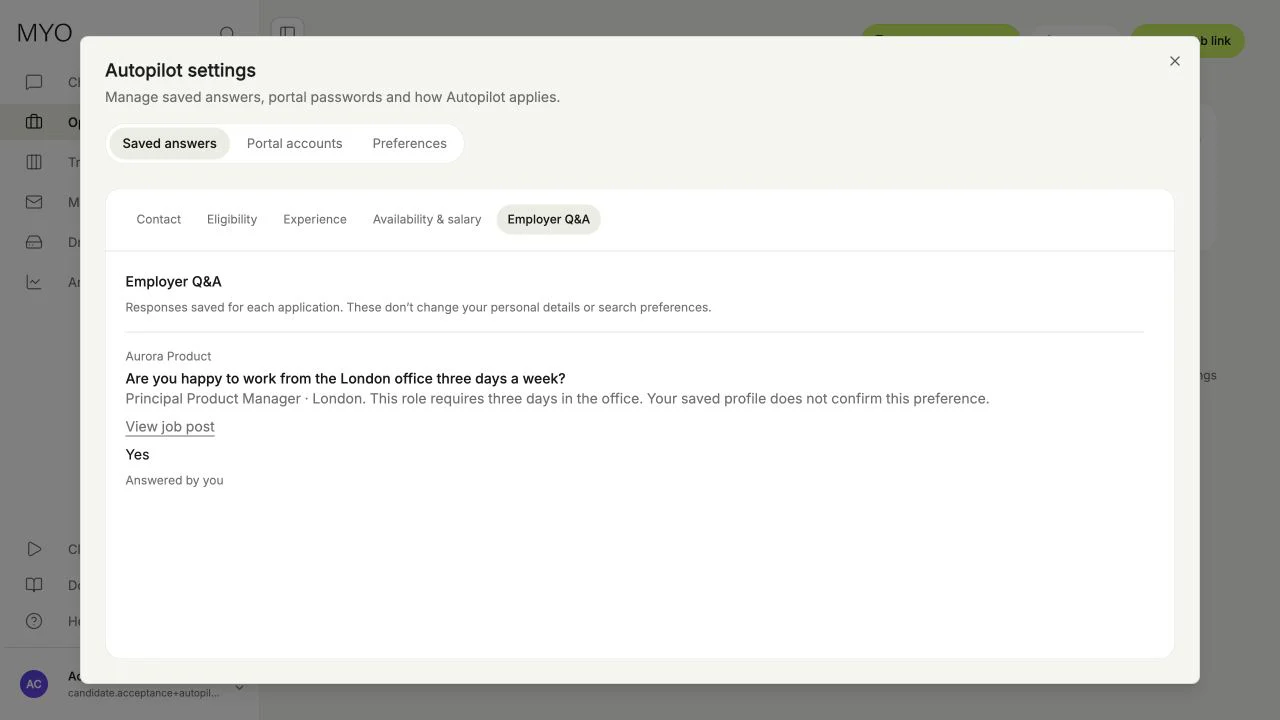
Open Autopilot settings → Saved answers for contact details, eligibility, experience, availability, and salary. Employer Q&A contains the employer questions you have already answered. This is where you can check that an answer was saved after it disappeared from the pending list.
Saving reusable facts updates the application answers used by Autopilot. It does not rewrite your Base CV or search brief. Edit those documents separately when the underlying career history or search preferences change. An answer update cannot change an application an employer has already received.
Preferences controls the daily maximum and document and cover-letter policies. Check the settings and exclusions before expanding your selected queue. Close the settings dialog to return to the work view you were using.
Pause or stop
Switch Autopilot off beside Daily momentum in Opportunities. New employer work stops, and an active attempt stops at the next safe boundary. A request already sent to an employer cannot be undone by Pause. Your saved answers, documents, queue, and submission history remain available.
Switch it on again to resume eligible selected work. Current saved authorisation is reused; MYO asks you to review setup if required answers or authorisation are no longer current. Pausing and resuming does not create a second submission for an application with an uncertain or confirmed outcome.
Pilot test checklist
Use one or two genuine roles first.
- Autopilot switch appears and setup opens.
- Only selected jobs enter the queue.
- Enabling checks the existing selected queue without opening or downloading a CV.
- Master CV mode uses the ready saved CV; tailored mode starts package preparation automatically.
- A known answer is reused when confirmed.
- An unknown answer appears on Home and in Needs attention.
- The card includes the job link or enough job context to answer.
- Saving shows a visible confirmation and decreases the waiting count.
- A connected WhatsApp receives the blocking question and its reply returns to the same application.
- Applications show a distinct status and next action.
- Completed applications are in Tracker, not the ongoing work views.
- Saved answers and portal accounts are accessible from Autopilot settings.
- Manual takeover downloads the expected documents and opens the correct job page.
- Employer receipts or decisions link to the right Tracker entry.
- Pause stops new work without removing history.
When reporting a problem, include the company, role, page, expected result, actual result, approximate time, and a screenshot. Never include credentials or protected personal information.
Frequently asked questions
Will Autopilot apply to every recommended job?
No. It works on supported applications that you select and that pass your limits and exclusions.
Do I need to download the CV first?
No. Turn on Autopilot and complete setup. Eligible applications already selected in your queue are prepared automatically. A document download is optional and never marks an application Applied.
Why is nothing happening after I enable it?
Check In progress, then Needs attention. There may be no selected applications, missing sources or answers, a daily/plan limit, an unsupported employer site, or a previous attempt that needs an explicit action. An awaiting-confirmation application is deliberately held to avoid a duplicate. If an application shows no explanation or next action, report it through Help with the company, role, and time.
Where did my completed application go?
Open Tracker. Opportunities keeps the recommendations and unfinished work you can still act on. Completed automatic and manual applications remain in your application history.
Where are my previous answers and saved portal passwords?
Open Opportunities → Autopilot settings. Use Saved answers → Employer Q&A for answered employer questions and Portal accounts for login access. Password reveals retain the recent-sign-in requirement.
Why did it ask something that is already in my CV?
The saved answer may be missing confirmation, may conflict with another source, or may not match the employer's exact declaration. Report repeated questions through Help so MYO can inspect the source link.
Why is an application awaiting confirmation?
MYO could not prove whether the employer accepted the final submission. Check the employer portal and connected Mail before retrying. This state prevents an automatic duplicate.
Can I use Autopilot without WhatsApp?
Yes. Questions remain on Home and in Opportunities → Needs attention. WhatsApp makes them faster to answer away from the app. When an attempted WhatsApp delivery fails, MYO can fall back to your account email for a blocking question while Application updates are enabled.
Does a WhatsApp reply immediately send an application?
It saves the answer to the waiting application. Autopilot then continues through the remaining supported steps and still requires reliable submission confirmation.
Can I edit an answer later?
You can edit reusable facts in Autopilot settings → Saved answers. Employer Q&A is a read-only history of saved employer answers. If one of those answers is wrong, report the company, role, and question through Help so it can be reviewed. Updating a saved fact does not alter a form the employer already received.