Connect Gmail, read recruitment emails, and link conversations to your applications.
Mail puts your recruitment emails beside your applications. Yenny uses linked messages to update application history and explain your progress.
Google sign-in does not connect Gmail. During the Google OAuth test phase, Google only permits connections from its configured test accounts. Spreadsheet imports do not require a Google connection.
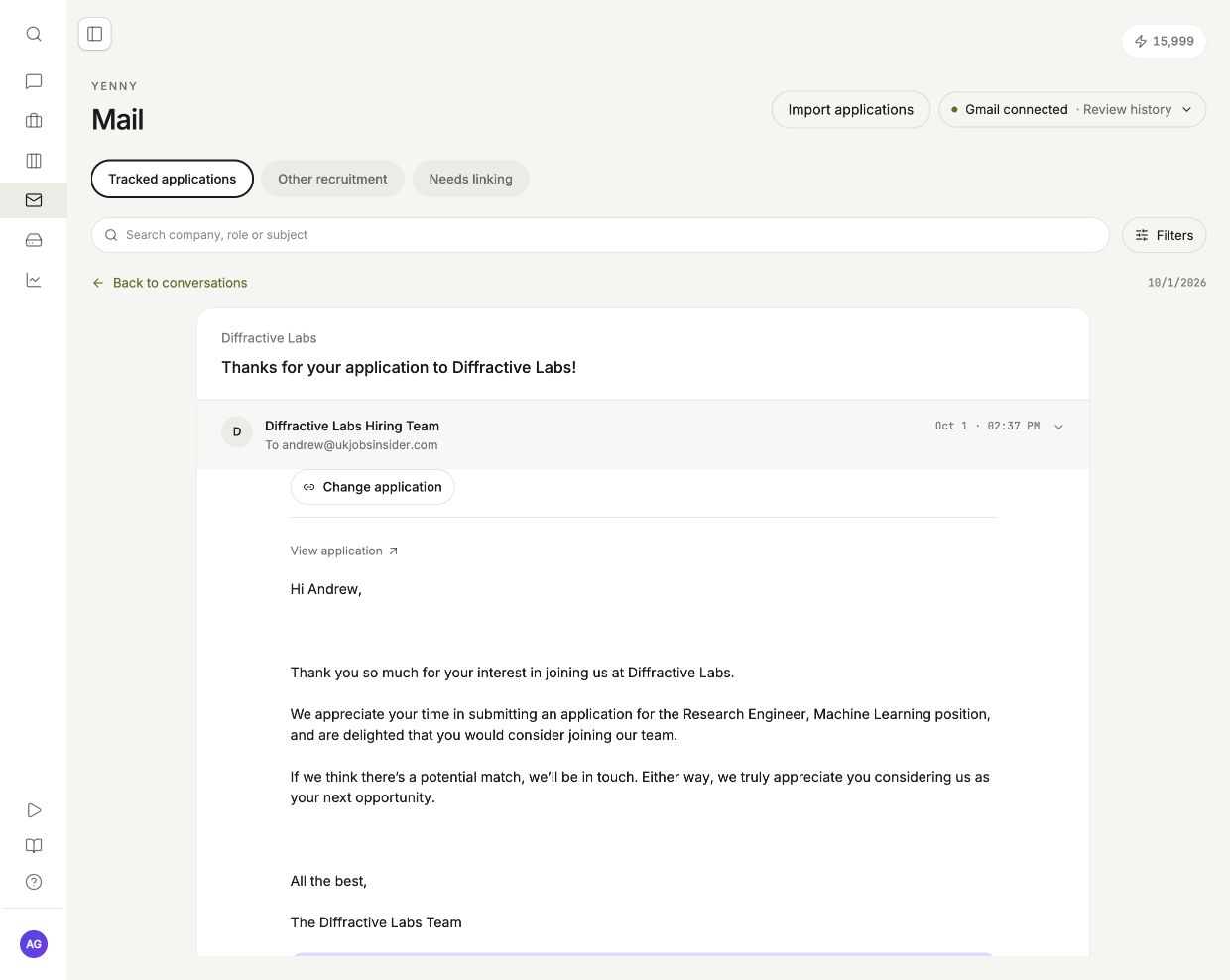
Connect Gmail
- Open Mail in the sidebar.
- Select Connect Gmail.
- Select the mailbox you use for applications.
- Approve the requested access.
You can connect one mailbox. It can differ from your MYO sign-in address. MYO keeps its own read state. It does not move messages or change labels in Gmail.
New messages normally arrive automatically. Use the Gmail connection menu to check the connection, catch up, reconnect, or disconnect.
Find an email
| View | Contents |
|---|---|
| Tracked applications | Conversations linked to a tracked application. |
| Other recruitment | Recruitment conversations with no application link. |
| Needs linking | Messages with an uncertain or conflicting match. |
Use the search field for a company, job title, or subject. Use Filters for dates, update types, or unread messages.
Open a conversation to read its messages. The envelope button on each row marks the conversation as read or unread without opening it.
If an email is missing, open Filters and select Find a missed email. Search Gmail and include the relevant message.
Link a conversation to an application
- Select Link on a conversation row to link its latest email. To link an earlier email, open the conversation and select Link application above that message.
- Enter at least two characters of the company or job title in the search field.
- Select the matching application.
- Select Apply to the entire conversation only if all messages concern that application. Leave it off to link only the selected email.
- Select Link application to confirm. Selecting a search result alone does not change the link.
If the job is not in your tracker, select Create a new application in the dialog. An email can confirm an application made outside MYO even when there is no tracker entry for it.
For an incorrect match, use Change link on the row or Change application above the message. The dialog also lets you move the email to Other recruitment or ignore it after confirmation. Ignoring it in MYO does not delete it from Gmail.
A manual link uses no credits. MYO asks separately before AI analysis of historical mail.
Create an application from an email
- Open the email.
- Select Create application above the message body.
- Enter the company, job title, and known dates.
- Select the event that the email confirms.
- Select Add to tracker.
This manual entry uses no credits. MYO records it as an external application. Upload your submitted documents in its Documents tab.
For multiple applications, use the import guide.
How MYO finds a match
MYO first checks whether the email concerns recruitment. It looks for an application reference, job link, company, job title, or previously linked conversation.
A company domain or the word “application” alone is not sufficient. A shared recruitment-platform sender does not establish the employer.
Uncertain matches stay in Needs linking. MYO checks new messages for conflicting job details, even after you link a conversation.
Yenny analyzes linked messages for receipts, recruiter replies, assessments, interviews, offers, rejections, and your follow-ups. Messages retain their original dates. An older message must not replace a newer status.
A receipt confirms that the employer received an application. It does not confirm an interview. Analytics explains how reports use this evidence.
Send a reply
- Select Reply.
- Check the recipients. Use Reply all or Cc when necessary.
- Write your message, or use Draft with Yenny as described below.
- Attach the required MYO application documents.
- Select Send reply.
MYO sends the reply only after your approval. If delivery is uncertain, select Check delivery before you retry. This checks for the original message to prevent a duplicate send.
Ask Yenny for a draft
For an email linked to an application, open Reply and select Draft with Yenny. Gmail must be connected.
- Enter what you want to say.
- Check the price on Draft with Yenny and Create draft. The default is 1 credit per draft. Select Create draft to start.
- Read Yenny’s suggestion. Select Use this draft to place it in your reply.
- Edit the text and check the recipients and attachments.
- Select Send reply when you are ready.
Generating a draft does not replace your existing text or send an email. Yenny uses your saved profile, base CV summary, saved writing preferences, the linked email and this application’s recent updates. Your instructions for this reply take priority. If generation fails, MYO returns the draft credit.
What Yenny remembers
Yenny’s chat keeps saved preferences for your MYO account across applications. For example, tell her in chat to remember that you prefer short replies in British English. The email composer reads those saved preferences when it creates a draft.
Instructions in the draft box apply to that draft. Selecting Use this draft or sending an email does not automatically save its wording as a lasting preference. Recruiter messages are application evidence, not verified facts about your career.
Yenny’s reports save insights about your application history for the MYO crew. A reply draft does not include private details from your other applications. Yenny does not automatically learn a personal writing style from every edit.
Use Mail from a connected assistant
The mail tools are available through the MYO connector. See Connect an assistant.
Credits and stored mail
The default price is 1 credit per newly analyzed, matched incoming message. The displayed price applies. Mail sync, manual links, and manually written replies use no AI credits.
If credits run out, messages still arrive and remain readable. Yenny’s analysis pauses. After you add credits, open Gmail connected → More options → Resume paused analysis.
Open Gmail connected → More options to disconnect Gmail or delete imported mail. A disconnect stops future sync. Google Drive has a separate connection and separate file copies.