
Import applications
Add applications from CSV, Excel, or Gmail. Review the details before you import.
Use Import applications in Mail or Tracker to add your existing applications. Yenny can include these applications in your reports.
Import a spreadsheet
- Open Import applications.
- Select Spreadsheet.
- Select Choose file and open your CSV or Excel file.
- Examine the worksheet, dates, company names, and job titles in the preview.
- If a field is incorrect, select Adjust columns.
- Select Review applications.
- For an incorrect application, select Review fields.
- Correct the details and select Confirm reviewed fields.
- Select Import reviewed sources. The button shows the number of entries in this batch.
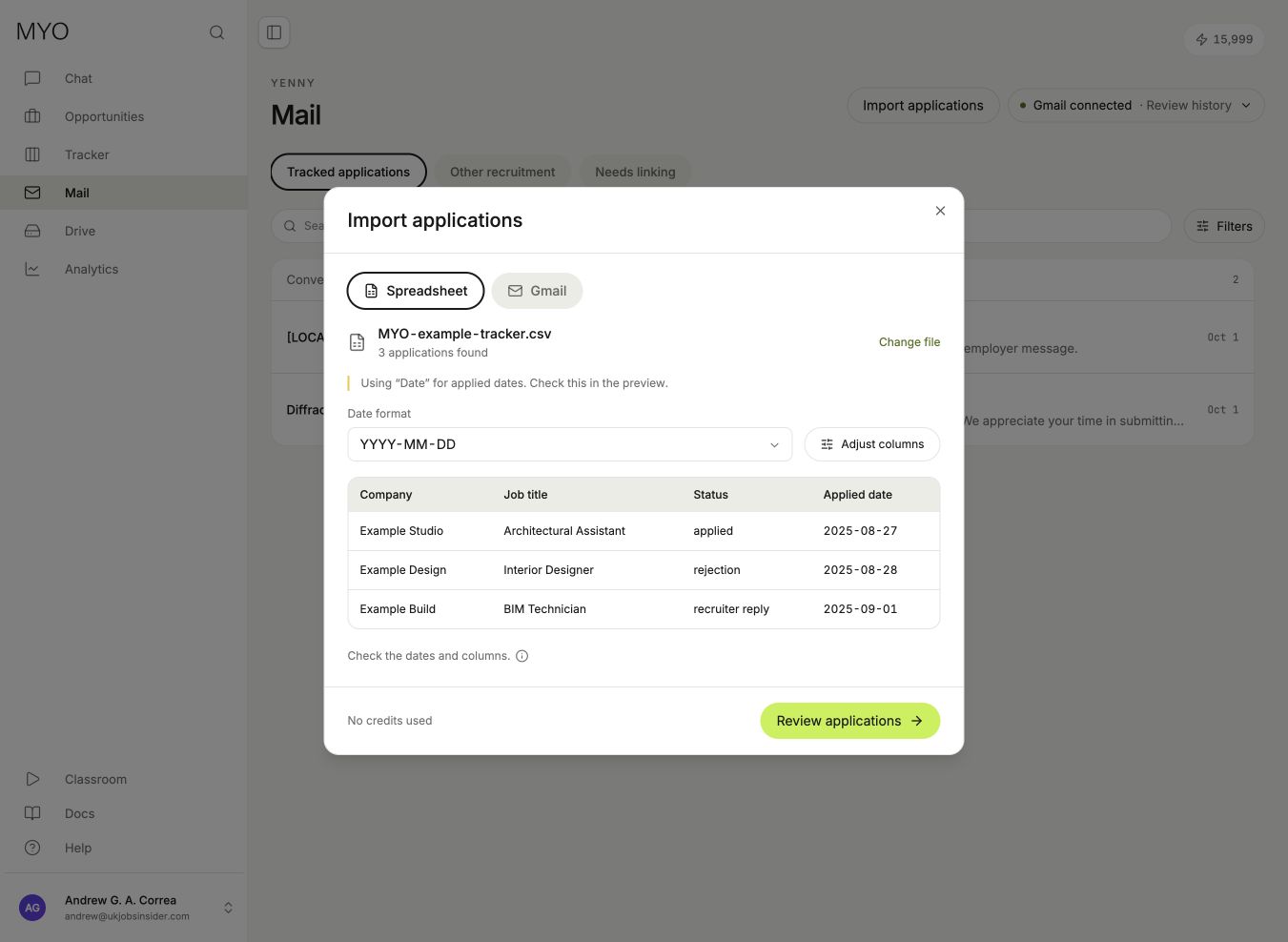
Check the fields and dates before importing. Shown with sample data.
The file limit is 10 MB. A sheet can contain up to 10,000 applications and 100 columns. MYO supports multiple worksheets and applications arranged in rows or columns.
The preview selects the worksheet with the strongest header match. Use Worksheet to select a different sheet. Adjust columns also lets you select the header row or column.
Dates and empty rows
Excel date cells keep their stored year, even if Excel displays only a day and month. For text dates, select DD/MM/YYYY, MM/DD/YYYY, or YYYY-MM-DD.
MYO leaves ambiguous text dates unknown until you select a format. For example, 03/04/2026 can mean March 4 or April 3.
Some trackers use Job Posting for the job title and How did you apply for the submission method. MYO recognizes these fields. If Date Applied is empty, MYO can suggest Date when the tracker also records a submission method. Examine this suggestion before you import.
MYO skips template rows with no company or job title when it identifies both columns. A row with only one of these fields remains available for correction.
Status and review
A recorded submission method can establish Applied. An expired job with no response is not a rejection. A positive response is not proof of an interview or offer.
The application date and event date are separate. If a rejection or reply has no date, the entry stays in review. Supply the date, or leave it unknown and confirm the reviewed fields. Do not invent a date.
MYO excludes wishlist entries from submitted applications. It compares repeat imports with existing applications to avoid duplicates. The original file remains unchanged.
Use Load more to review the next batch. Use Recent imports to return to an unfinished import.
Credits
Mapped spreadsheet rows use no credits. Unrecognized rows can use AI extraction. The preview shows these rows and the credit price before you continue.
AI imports currently cost 1 credit per new application you approve. Duplicate applications use no import credits. The final review shows the maximum cost for the batch.
Import from Gmail
- Connect Gmail in Mail.
- Open Import applications and select Gmail.
- Set Start date, or leave it blank for all history.
- Select Find applications.
- Review the results and correct uncertain fields.
- Import the reviewed entries.
A new Gmail import includes its first email update in the import price. Later updates use the mail analysis price.
Auto-import new applications adds clear future application emails at the displayed price. Uncertain results stay in review. You can turn this option off at any time.
Documents and reports
External applications show Submitted externally. Upload the actual CV or cover letter in the application’s Documents tab. An import does not ask Olaf to create new documents.
MYO saves linked emails as PDFs in the application folder. Yenny uses tracker records and dated email evidence in Analytics.