Applications
How a role becomes a tailored CV and cover letter, and how you send it.
MYO tracks each application for one role. For applications you prepare in MYO, Olaf writes a tailored CV and cover letter from your approved history.
The queue
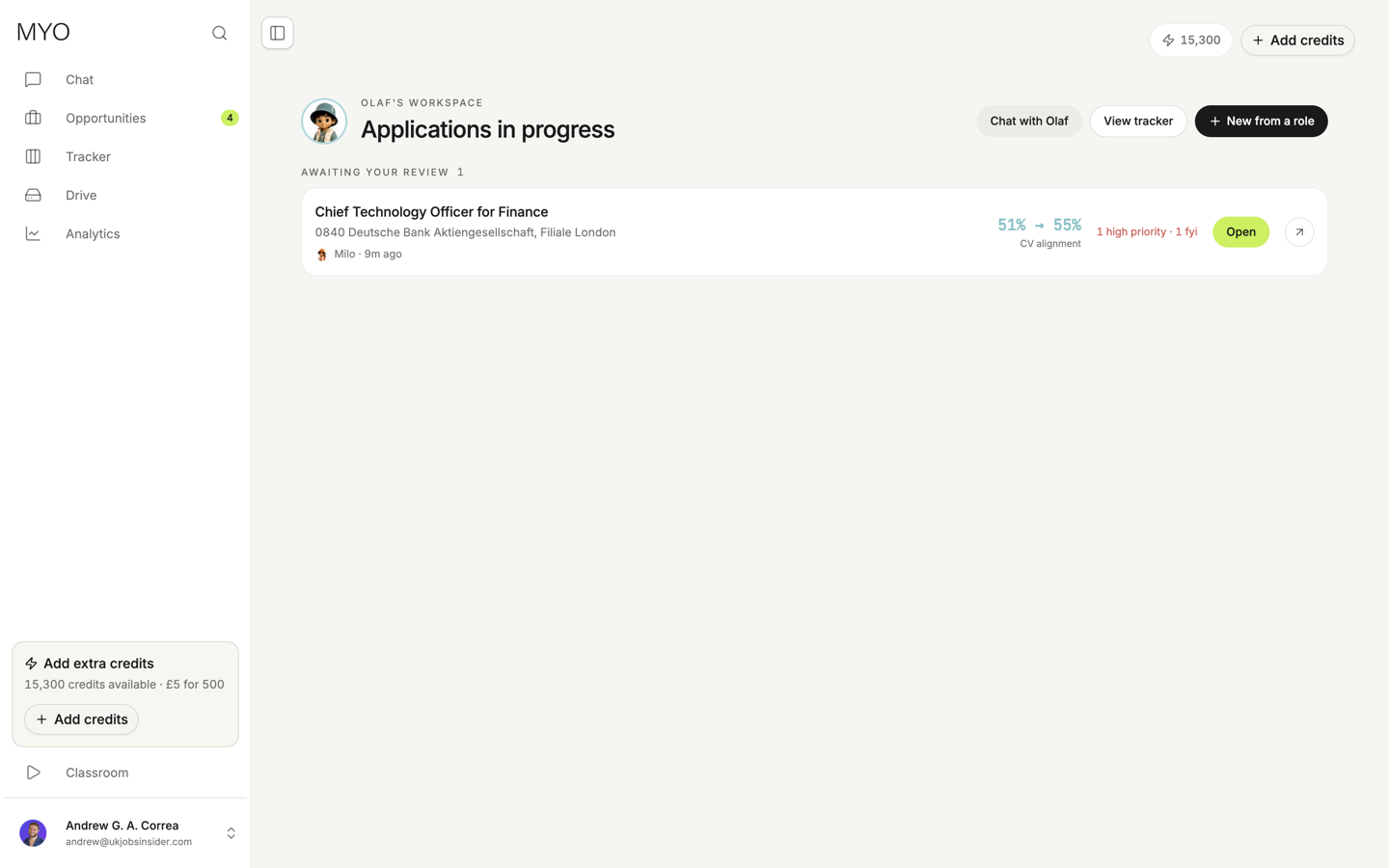
Applications in progress lists packages waiting on you. Each row shows the role, who sent it, CV alignment, and an Open button. Chat with Olaf, view the tracker, or start a new one from a role.
The package
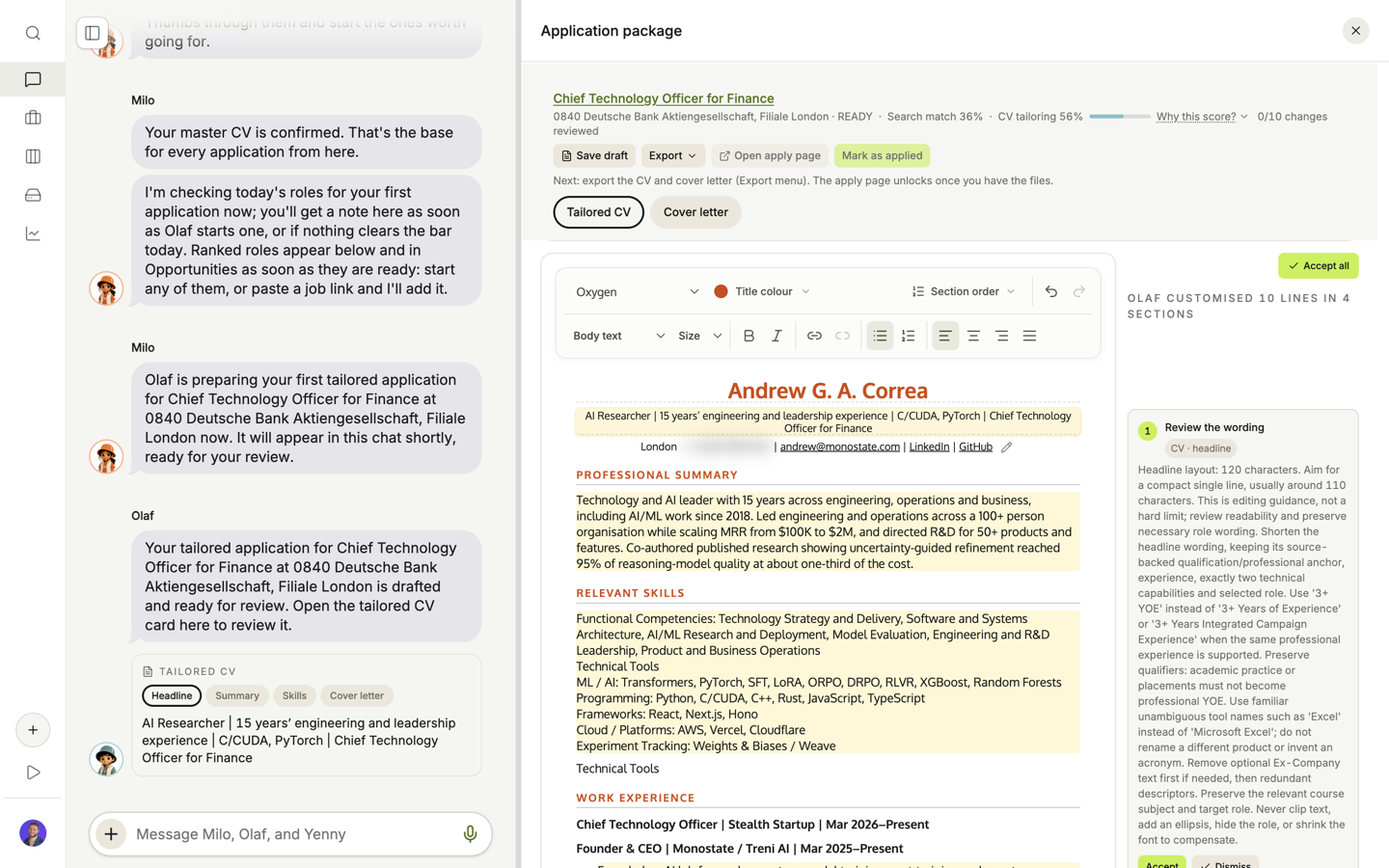
Open a row and the workspace shows the draft beside the chat.
- Read the tailored CV. Switch to the cover letter.
- Ask Olaf to change anything that is off, or edit the draft. Changes can save as you go.
- Accept a suggestion only when it matches experience you actually have.
- Download your CV or cover letter. A complete application moves to Applied in the tracker automatically. Save draft alone does not change its status.
- Open the employer page and submit there.
MYO does not send the application for you. Applied records the download milestone; it does not confirm employer submission. Automated apply is on the roadmap for Pro and Max. It is not available yet.
The same package appears on the tracker and in Drive.
Applications submitted elsewhere
You can import a tracker or create an application from an email. These applications show Submitted externally. Importing them does not generate a new CV or cover letter.
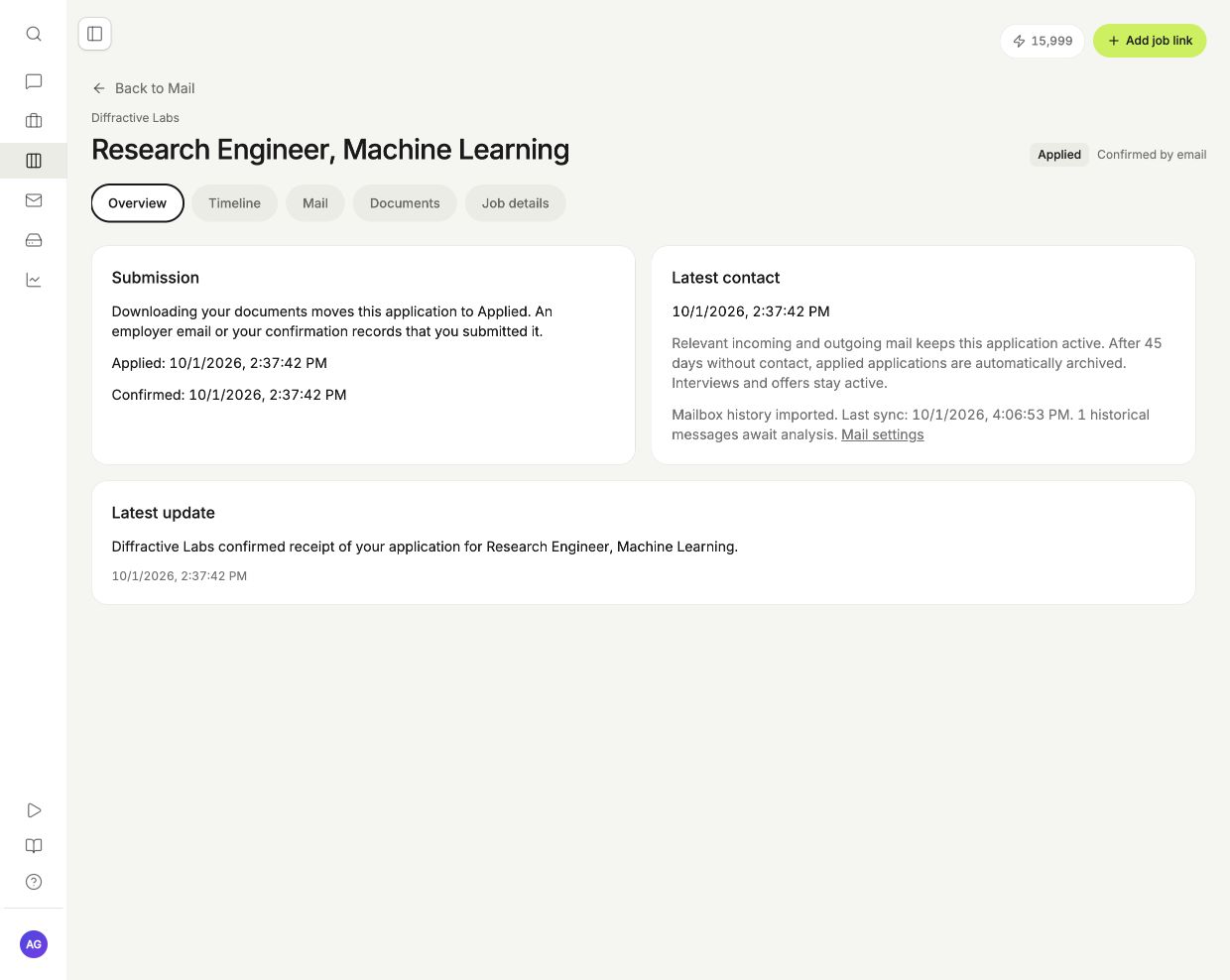
Open an application from Tracker to see its Overview, Timeline, Mail, Documents, and Job details. Upload your submitted CV and cover letter in Documents. Use Job details to add notes. Linked recruitment emails appear in Mail and as PDFs in the application’s Drive folder.
Yenny can include external applications in reports. Correct unknown dates and uncertain fields before using those events to assess your progress.